
無障礙的定位點及快速鍵操作說明, 該如何設定?
-
中英文網頁都需要加定位點及說明.
-
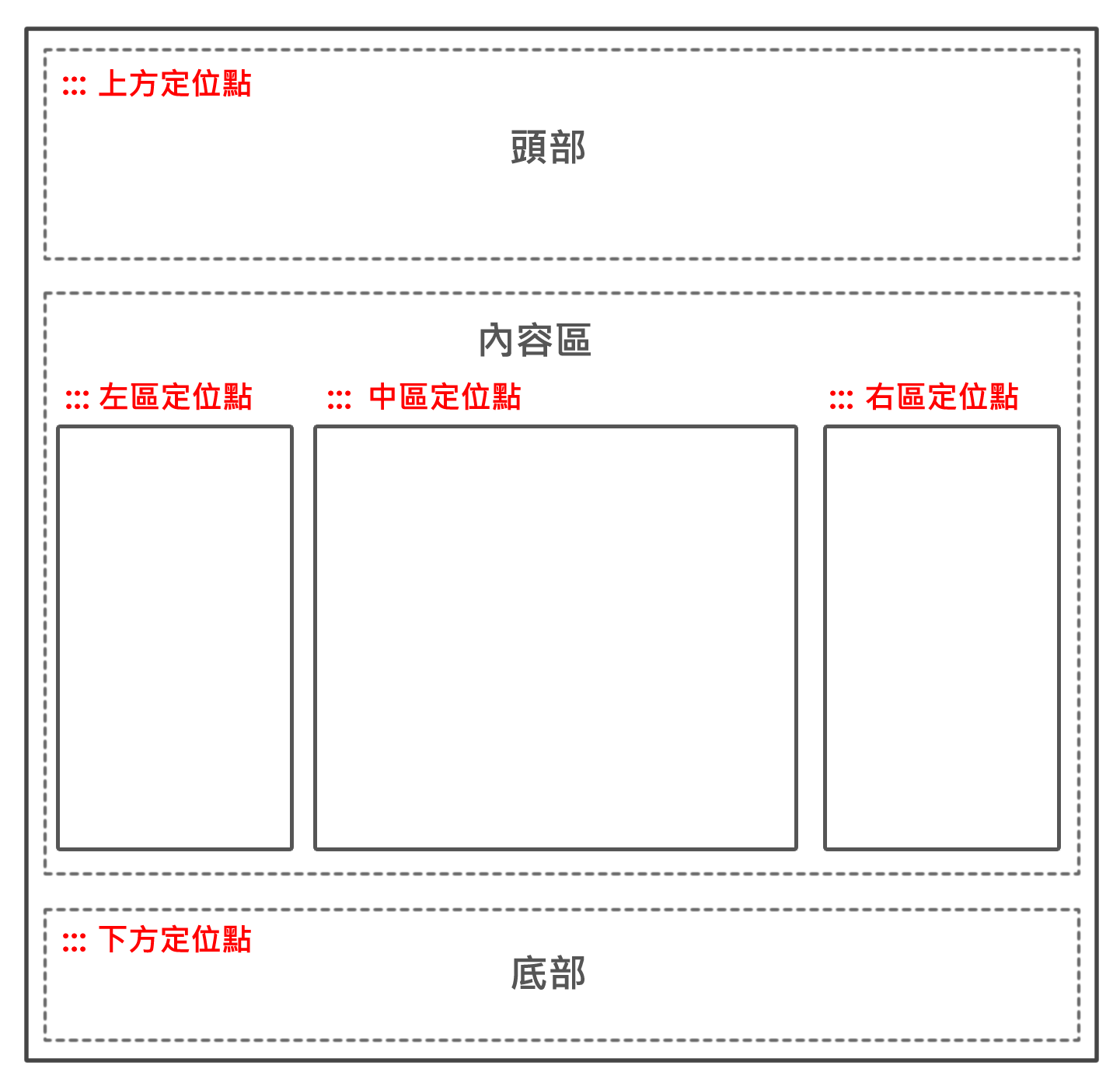
每個網站都有頁面佈局之架構, 大致區分為頭部/內容區/底部, 內容區可再區分為一欄式/二欄式/三欄式(如下示意圖), 請先依個各網站內容, 來定義各區塊功能.
-
各區塊功能, 每個網站可能不同, 請依實際用途定義, 再設定相關定位點, 首頁及所有內頁都必須有定位點功能.
-
定位點的說明, 須加在網站導覽內容上方. 參考內容如下(可複製下列內容,再依你的網站實際情形做適當修改):
<中文說明範例> 本網站依無障礙網頁設計原則建置,網站的主要內容分為五大區塊:(1) 上方內容區、(2) 左方內容區、(3) 主要內容區、(4) 右方內容區、(5) 下方內容區。
本網站的快速鍵(Accesskey)設定如下:
- Alt+U:上方內容區,為本網站的主選單、網站導覽、語系切換及網站搜尋等。
- Alt+L:左方內容區,此區為次選單。
- Alt+C:主要內容區,此區塊呈現網頁主要內容資訊。
- Alt+R:右方內容區,此區放置相關連結。
- Alt+B:下方內容區,包括聯絡方式、版權宣告等。
如果您的瀏覽器是Firefox,快速鍵的使用方法是 Shift+Alt+(快速鍵字母),例如 Shift+Alt+C 會跳至網頁主要內容區,以此類推。
<英文說明範例> This site is committed to ensuring that its site is accessible to all users. The Accesskeys used by this site are designated as an alternative for people with disabilities. The content of this website divides into five blocks: (1) Top block, (2) Left block, (3) Main Content block, (4) Right block, and (5) Buttom block.
The Accesskeys used by this site are designated as follows:
- Alt+U:Top block, containing the links to the major sections of this site.
- Alt+L:Left block, containing the links to the navigate sections of this site.
- Alt+C:Main content block, providing the principal information of the page.
- Alt+R:Right block, containing the related links.
- Alt+B:Buttom block, containing the links to the other sections of this site.
In Firefox, use Shift + Alt + [Letter] as a Accesskey. Example: Shift + Alt + C takes you to the main content block of the page.
Rpage平臺如何設定"定位點"?
- 上方定位點, 請於"頭部頁面建立"設定, 使用系統頭部, 打開頭部定位點顯示即可; 若使用自定頭部, 請加入以下語法:
<中文>
<英文><a accesskey="U" href="#start-U" id="start-U" style="textdecoration:none" title="上方內容區">:::</a> <a accesskey="U" href="#start-U" id="start-U" style="textdecoration:none" title="Top block">:::</a> - 下方定位點, 請於"底部頁面建立"設定, 加入以下語法:
<中文>
<英文><a accesskey="B" href="#start-B" id="start-B" style="textdecoration:none" title="下方內容區" >:::</a> <a accesskey="B" href="#start-B" id="start-B" style="textdecoration:none" title="Buttom block" >:::</a> - 內容區的定位點Rpage平臺已寫成模組, 只要在適當位置加入定位點模組即可. 每一頁一種定位點只會出現一次, 如: 中區定位點(Alt+C) 不會出現2次以上.
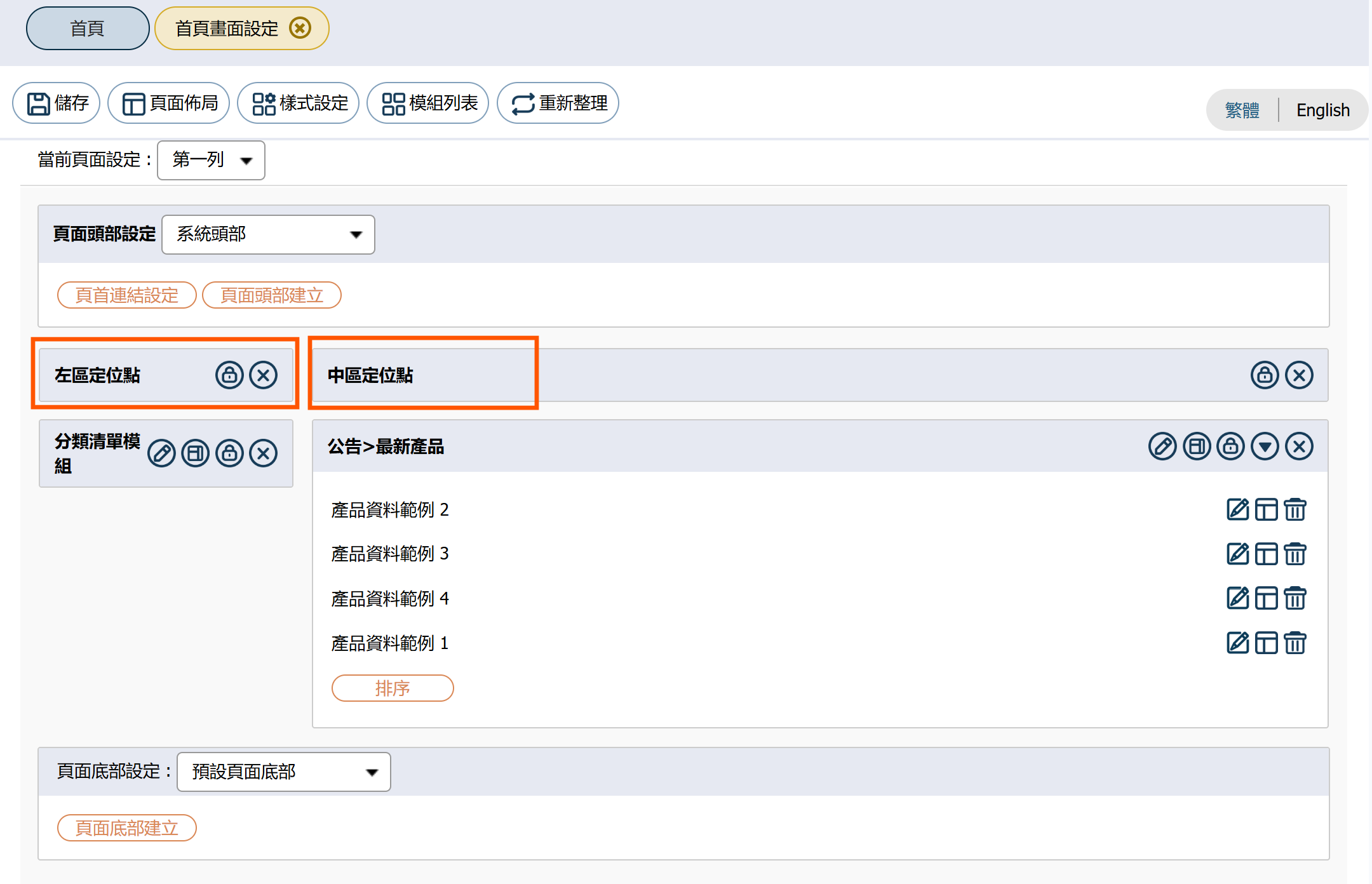
- 首頁畫面設定: 於適當位置放置定位點. 若你的內容區第一列為廣告模組或僅圖片無內容, 請將內容區的定位點設在實際有內容那一列(如: 第二列).
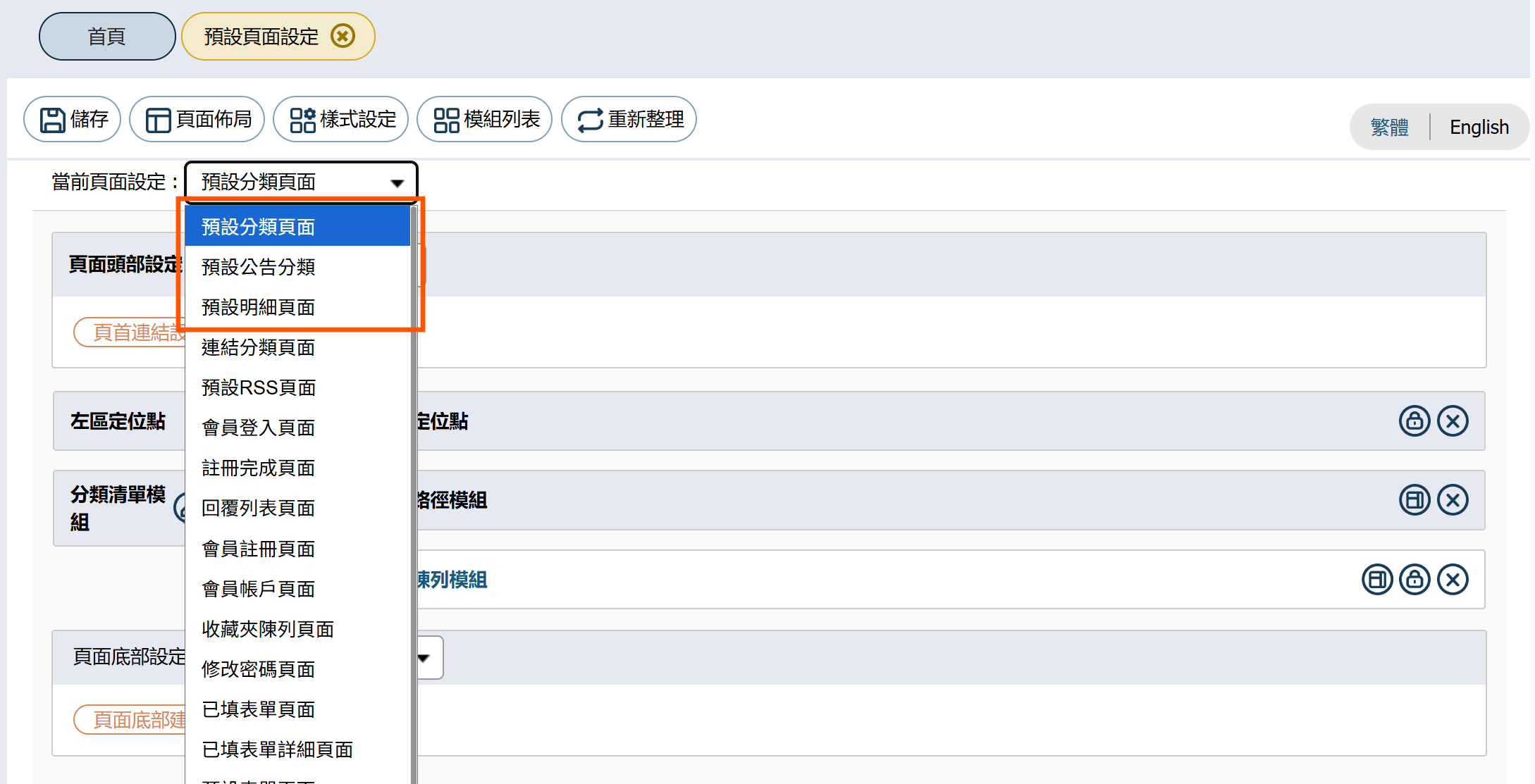
- 預設面頁設定: 前三項(預設分類頁面/預設公告分類/預設明細頁面)一定要加設定位點, 因大部份網頁使用到的是這項, 其他項目若有使用到(如: 預設表單頁面), 也可一併設定.
- 設定快速鍵操作說明, 使用自定模組, 建一個"無障礙快速鍵操作說明", 內容 參考上述.
- 網站導覽設定:

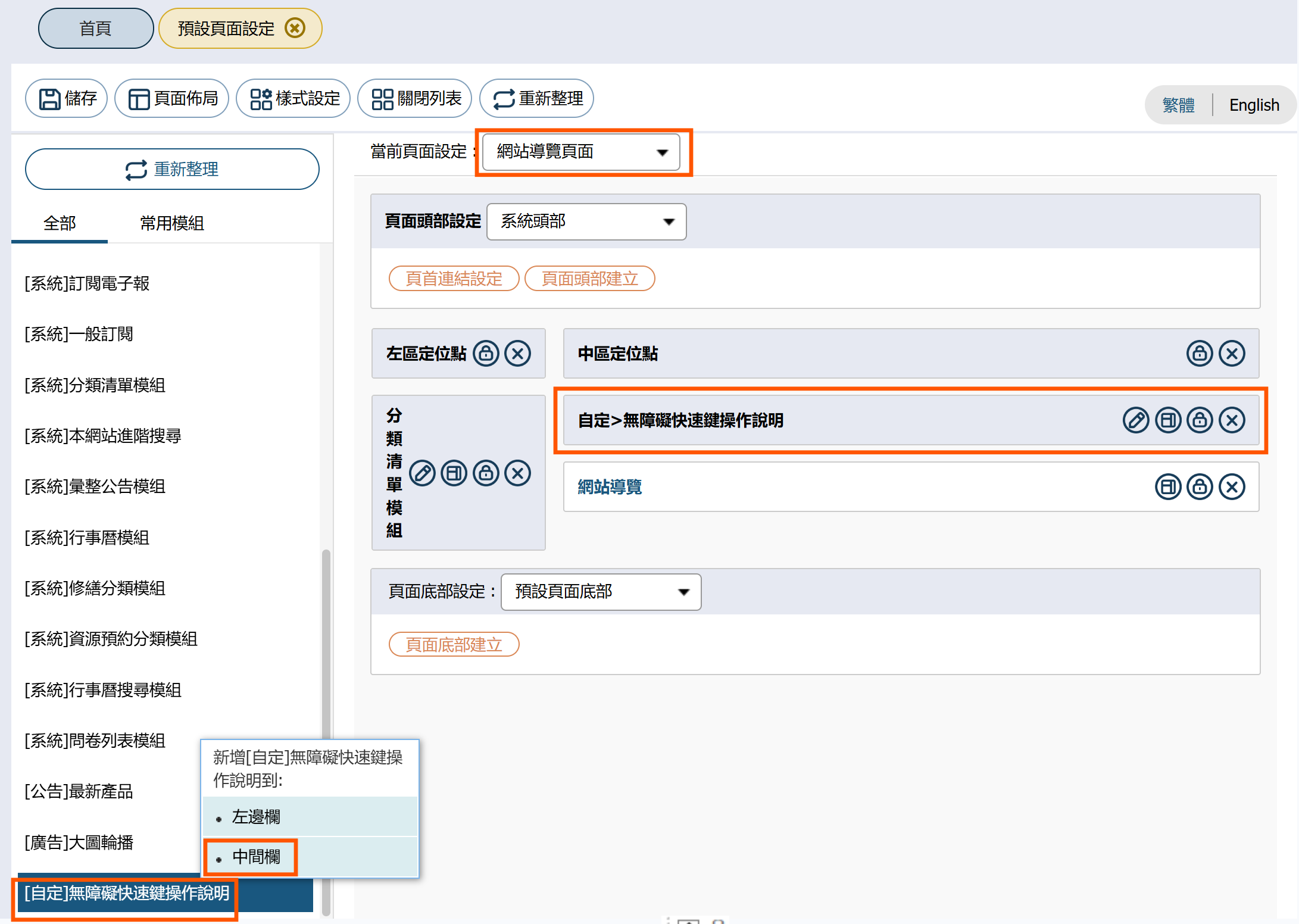
預設頁面設定->網站導覽面頁->打開模組列表, 加入適當定位點及[自定]快速鍵操作說明
⚠️ 106年9月1日業已公告「政府網站服務管理規範」之網站親和性原則,其中中文版「網站地圖」超連結,請統一使用「網站導覽」
